One login, separate businesses
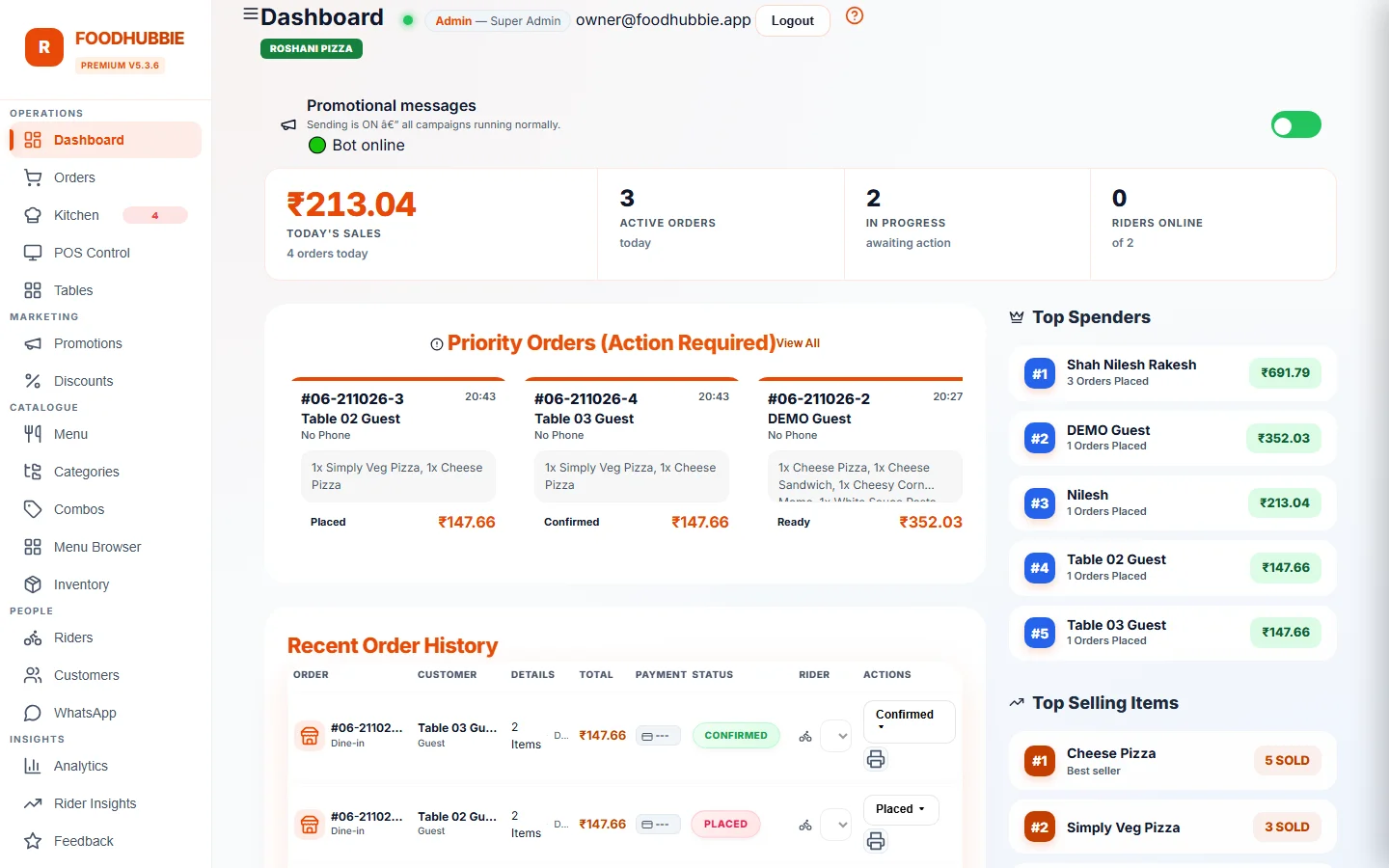
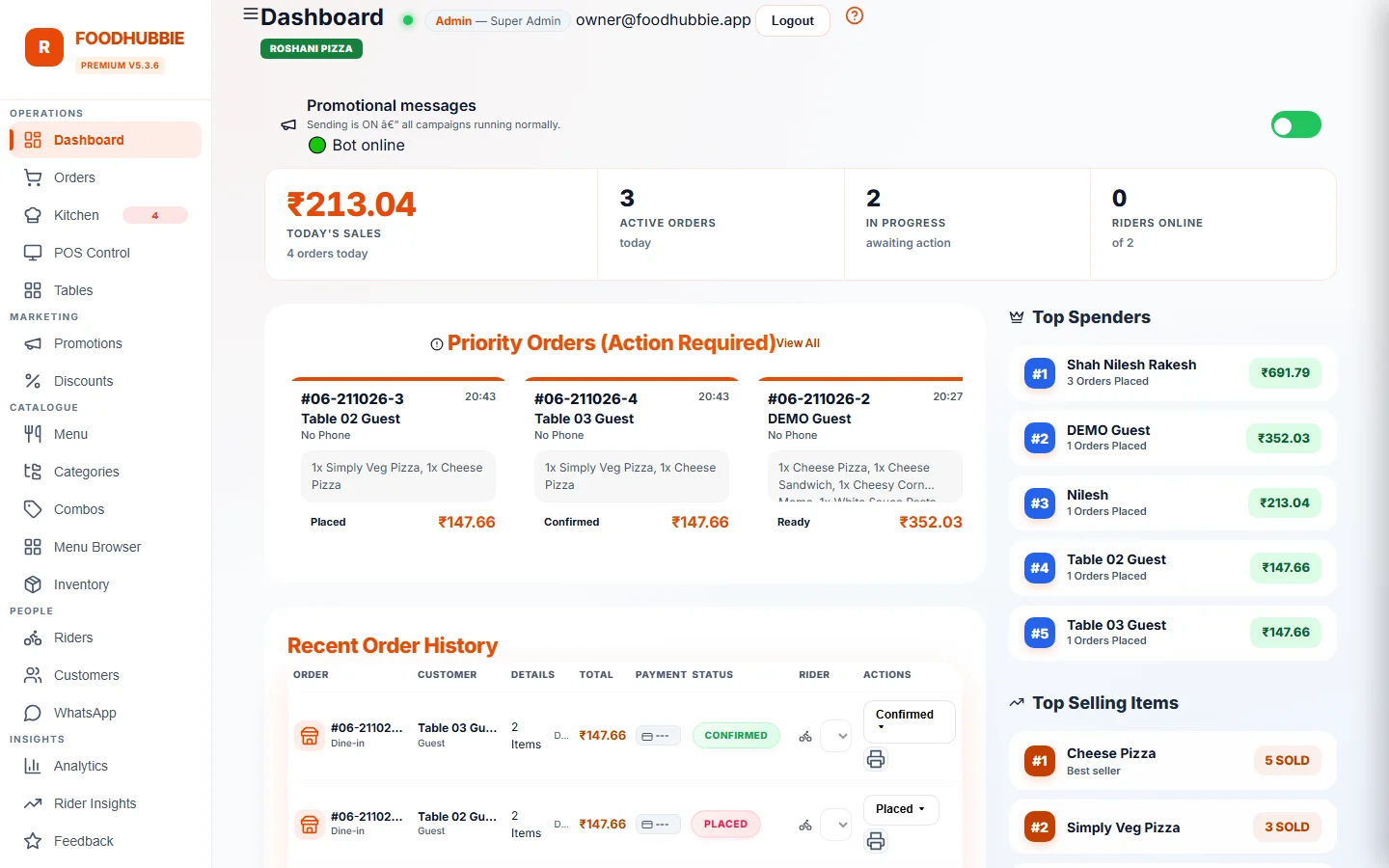
The outlet switcher in the top bar is the whole idea: every screen — orders, tables, menu, inventory, customers, riders, reports — redraws for the outlet you selected. Staff at the branch keep their own accounts; you keep the view from the top.
What is shared, what is separate
Menu and prices, tables and their QR codes, inventory, customers, riders, staff and reports all belong to one outlet.
One owner account switches between outlets. No second subscription, no separate dashboard to keep open.
Accounts are created per outlet, so a manager or rider sees the location they were added to.
A cafe's menu and a restaurant's menu are separate catalogues — different items, prices and availability, on their own QR codes.
Each branch assigns from its own rider list, with its own delivery ledger, because a rider cannot deliver for two kitchens at once.
Orders are counted where they are taken, so the bill for a quiet branch is not inflated by a busy one.
Set up the second outlet
Name and location under the same account, so it appears in the switcher.
Start from the existing catalogue or build a local one — the branch's prices and specials can differ from day one.
Create the branch's tables to print its QRs, then add the manager and staff accounts that work there.
Switch outlet to check the evening's sales, then switch back. Each branch's POS, kitchen display and riders stay on their own data.
Adding an outlet is a setup step with your onboarding — see pricing for the one-time setup and per-order rates.
Multi-outlet questions, answered plainly
Do I pay a licence fee for each outlet?
No. There is no per-location licence. Each outlet's orders are billed on their own per-order usage, so a second outlet on the same login adds only the orders it actually takes.
Is each outlet's data separate?
Yes. Menus, tables, QR codes, orders, customers, staff, riders and reports belong to a specific outlet. Switching outlets switches the data set, and a staff account only reaches the outlets it was created for.
Can an outlet manager see the other outlets?
Only if you give them access. Staff accounts are created per outlet, so a manager at one branch works inside that branch unless the owner adds them to another.
Is there a combined view across all outlets?
Each outlet's dashboard, reports and billing are its own. Comparing outlets means switching between them rather than a single merged revenue number, and there is no consolidated multi-outlet report today.
Open the next branch on the same system
Rates and setup are on the pricing page; the demo can run on two outlets at once.
Start free trial → WhatsApp us